EPM Add-in for BPC 10 (The BPC Office Client)

Here is some interesting info about the Office Client for BPC 10.0.

It turns out SBOP EPM Add-in Big Vol 10.0 is the 64 bit version of the client which uses .NET 4.0) This should only work with NW, because MS doesn’t support the 64 bit version of MS Office.

SBOP EPM Excel Client 10.0 is the 32 bit version.

Site Permissions – Object reference not set to an instance of an object

Recently had a strange experience with a client site. Clicking on Site Permissions caused this error:

“Object reference not set to an instance of an object”

I was also getting an error when backing up thru Central Administration:

“The Default Zone of this Web Application has no associated IIS Web site.”

Somehow the Default Web Site in IIS was being used for SharePoint instead of SharePoint – 80. To fix this:

  1. Unextend all the Web ApplicationsĀ  (do NOT check delete web site for Default Web Site).
  2. Extend SharePoint – 80
    1. Use Port 80
    2. Use standard virtual directory path

Installing BPC 10.0 NW Support Packages

Prep

Before beginning, document the current install by making screen shots of the System > Status in SAP GUI for reference.

Download Files

NOTE: NW BPC Support Packages are NOT cumulative, so download all the SPs between your current version and the latest.

  1. Retrieve the needed .SAR file(s) from the SAP Marketplace
  2. Software Downloads > Support Packages and Patches > A – Z Index > B
  3. SAP BPC FOR SAP NETWEAVER > SBOP PC 10.0 FOR SAP NW
  4. Comprised Software Component Versions > SAP CPM BPC ABAP 10.0 > Support Packages
    1. See Finding Prerequisites section below to identify what other files you need.
  5. Check the box for the SP and click Add to Download Basket.
  6. At this point, the SP is in the Approval List tab of your Download Basket and needs to be approved for download by SAP.
  7. Submit a ticket to the XX-SER-SAPSMP-SDM component asking them to approve the download.
  8. Once it is approved you may download it.

NOTE with Solution Manager, you can retreive the SP directly thru NetWeaver.

Finding Prerequisites:

  1. While at step 4 in the section above
  2. Click the Title of the Support Package
  3. Click Package Info
  4. Scroll down to Import conditions
  5. The above screen shot shows, that BPC and POASBC Add-ons must be installed. And SP01 for BPC and SP02 for POASBC must be installed. (POA = Portable Object Adapter from CORBA and SBC = Shared Business Components)

Upload Support Packages

The Support Packages need to be uploaded into NetWeaver and decompressed.

Load the Support Package into NetWeaver:

  1. On the NetWeaver server, logon to client 000 as Admin
  2. Run the SPAM transaction
  3. Go to the Support Packages menu
  4. Click Load Packages > From Front End
  5. Browse to the .SAR file location
  6. Click Open
  7. Click Decompress
  8. Repeat steps 1 thru 7 for all the SP files.

Transport Support Packages

Once the files are uploaded and decompressed, import them into the system:

  1. On the main SPAM display ensure ‘New Support Packages’ is selected under ‘Directory’
  2. Click Display
  3. Click the SP in the list
  4. Right click on the package and choose Define Queue
  5. Click the green checkmark (Continue)
  6. Click No to Adding Modification Adjustment Transports to the queue
  7. The window should close and in the main SPAM window, the Queue should display your SP
  8. Click the red truck button to transport the update
  9. Click the Continue to start the transport of the update into the system
  10. Once the transport finishes, ‘Confirm the Queue’ by clicking the green checkmark with a pencil.
  11. Repeat steps 1 thru 10 for all SP files.

Troubleshooting

If a transport fails with Objects_Locked error

  1. Capture the detail like Request #, Objects (ex. R3TR SICF WEB)
  2. To fix the issue, the lock(s) must be release. They must be releases in the Tasks, Requests order
    1. Use SE01
    2. Click the locked task
    3. Click the Truck button
    4. Do steps 2 and 3 for all locked tasks
    5. Click the locked request
    6. Click the Truck button

If the lock is occurring in a client other than 000, you must login to that client to release the locks.

ABAP Access Keys

Recently I tried to create a new object in the ABAP Object Navigator. It seemed simple, select Program, enter HELLO_WORLD_2 and press the Enter key. After doing so, I’m eventually faced with this screen:

If you have the Access keys, then enter the Developer Access key and the Object Access key and click Continue.

If you don’t, then you need go thru these 2 steps:

  1. Register the Developer
  2. Register the Object

Register the Developer

  1. Login to SAP Service Marketplace (http://service.sap.com/licensekey)
  2. Click SCCR Keys
  3. Click Register Developer and follow the prompts

Register the Object

  1. Same as above, except click Register Object for step 3

Once you have registered both the developer and object you can view either My Company’s Registrations, Developers Registered by Me or Objects Registered by Me by clicking the SSCR Keys menu link

Use the Developers and Object tabs to retrieve the Registration keys (Access key) and enter them in the User and SAP Object Key screen.

SharePoint Designer Workflow – Majority Voting

Recently faced with the challenge of writing a SharePoint Designer workflow that moved a change request thru 6 steps. One of those steps asked 12 team members to vote on the request. As soon as a majority vote was determined, the step could end, and the workflow could continue. This meant not all 12 people needed to vote, the workflow only needed to know that more than 50% of the voters had chosen to approve or reject the request.

By leveraging the Task Customization Tools in SharePoint Designer 2010 and the Task Process Result Data source, here’s how I did it.

  1. Add Start Approval Process action to my workflow.
  2. Click Approval link to view the Approval Task page
  3. Change the name to ‘Majority Voting’
  4. Click on the Change the behavior of a single task link
  5. Scroll down to the When a Task Completes step
  6. At the end of this step add logic to end the Majority Voting task and continue on with the workflow
  7. In the screen shot below I’ve added the few lines required:
    1. Add comment to indicate changes
    2. Insert If any value equals value condition
      1. Click the first value link
        1. Ā Leverage the Task Process Results Data source for the first value of the condition. This Data source contains great fields for use in this situation.
        2. Select the Percentage of Approved Field from source.
        3. Click OK
        1. Change equals to is greater than
        2. Click the second value link and enter 50
      2. Add a Log to History List action
      3. Add a End Task Process action
      4. Add an Else-If Branch
      5. Add an If any value equals value condition
        1. Leverage the Task Process Result Data source again, this time using Percentage of Rejected field
        2. Change equals to is greater than
        3. Change second value to 50
      6. Add a Log to History List action
      7. Add a End Task Process action
  8. You have finished using the Task Customization Tools, in the breadcrumbs click on Editor to go back to the Editor for the main workflow
  9. Click on these users link
  10. Add the participants
  11. Swith from One at a time (serial) to All at once (parallel)
  12. Add a Title and Instructions
  13. Click OK
  14. The Majority Voting step is done

Identify Worker Process

This post is directly fromĀ  Abhijit Jana’s blog

Identify Worker Process in IIS 6.0

• Start > Run > Cmd
• Go To Windows > System32
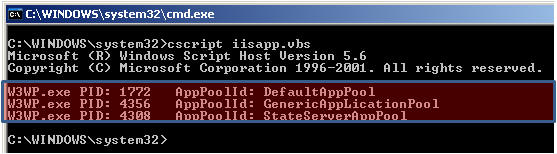
• Run cscript iisapp.vbs
• You will get the list of Running Worker ProcessID and the Application Pool Name.


So, here is your list of all worker process with corresponding application pool name.Ā Ā From Ā the Application pool name you can easily identify which worker process is related with your application.

Identify Worker Process in IIS 7.0
From IIS 7.0 you need you to run IIS Command Tool ( appcmd ) .
• Start > Run > Cmd
• Go To Windows > System32 > Inetsrv
• Run appcmd list wp

Solving Some HR Problems – Forms, Forms, Forms

Forms, forms, forms

Would you see value in a forms system that allowed employees, management and HR staff to fill out forms and automatically route those forms for approval based on your business rules?

That same system would allow users to search, retrieve, archive and disposition forms according to your requirements.

Would you see value, if you could have the system without buying any hardware or software?

Chances are you have what you need and may not know it. You see Windows SharePoint Server 3.0 and SharePoint Foundation 2010 are free, they run on Windows Server and provide all the features described above when it comes to forms handling. If your company is using a Microsoft Windows Server you probably own everything you need.

Follow this simple example:

The Quality Manager has hired a new technician, Brenda. She arrives on her first day of work and for whatever reason, the new hire doesn’t receive an ID badge, she has a desk but the phone is disconnected and the computer hasn’t arrived yet. The computer comes the following day, but her email account hasn’t been setup yet.

Safety training is today, but they don’t have room for her in the class because nobody notified the trainer.

Payroll needs to know about the new hire, and Benefits still needs her to make insurance and 401k selections.

Now follow this example:

The Quality Manager that hired Brenda goes to the company intranet, fills out the New Hire form and submits it.

Stacy in HR finds an alert email about the New Hire form for Brenda. She reviews the form by clicking a hyperlink in the message. She likes what she sees, so starts the New Hire automated workflow with a few mouse clicks.

Tom in Security now receives notice Brenda will need a badge for building access. The notice includes the particulars of access like rooms, times and days.

In addition to Security, John and Jeff in IT receive emails indicating Brenda joining the company and needing a phone, a laptop, network folder access, a network login and email account. And she needs access to the APQP system.

Chris in Payroll and Jenny in Benefits are notified as well so Brenda will have a paycheck on her first payday. And Jenny knows to schedule her for an insurance and 401k meeting.

That is pretty good for one simple change in the Quality Managers behavior; using the New Hire form on the company intranet.

One last thing, Jeff in IT planned to build her laptop but was interrupted by a server failure. Fixing that took all day and some of the evening. He has completely forgotten about Brenda’s laptop and the email about Brenda is now buried in his inbox by 20 other emails. Fortunately he received anĀ  automatic reminder the next day about the laptop. He remembers Brenda and builds her laptop. We all forget, but getting that reminder helps us succeed anyway.

Oh, and yes, the trainer was notified about the new hire needing to attend the safety class.

Yeah but we already…

Maybe you are thinking, “Yeah, but we already…”

…email a Word document around

Simple, there is one source of truth. The New Hire form submitted by the Quality Manager is stored in one controlled location. There is a change history associated with the form, so it is simple to see who changed the document and how. It also cuts down on storage in your Inbox because it is not stored there, but it is one hyperlink click in your email away.

Reduced Inbox storage means, reduced calls to IT asking them to increase your mailbox storage limit.

…have a network folder

You cannot filter, sort and search a network folder for New Hire forms for the Sandusky and Tampa locations for the Finance and Engineering departments. You cannot restore the New Hire form back to what it looked like before Security changed it. SharePoint allows for change control and any fields in the form can be used for searching, filtering and sorting. So if you want to see new hires in your Sandusky and Tampa locations for the Finance and Engineering departments, it’s easier than filtering and sorting data in Excel.

Dream

Dream about the time saved in your department and in the company.

Consider Brenda, Quality Technician: 8+ hours lost because she doesn’t have a computer, building access, email and a phone. Consider the Quality Manager: 1 hour lost chasing her computer, phone, etc. Consider HR: 1 hour lost ensuring Payroll, Benefits, Security and Safety have welcomed Brenda with a paycheck, insurance, a badge and training.

Consider the time savings if you are using paper forms and signatures. Nobody walking a form around for approvals, no inter-office mail and no calling around to find out where the form is in the approval process.

Then consider all the Brendas every year.

Then consider these other forms:

  • time off requests
  • performance reviews
  • position changes
  • salary changes
  • payroll fixes
  • payroll changes
  • discipline
  • terminations
  • job applications

Building a New Hire form and workflow is only a couple of days of work, depending on requirements for the form and the approval process. The time spent building the form and workflow pays for itself very quickly.

Summary

I’m passionate about SharePoint and how it can help companies. My job is to help you improve your business and hopefully by writing this article I’ve given you some ideas on how to do that.

If you have questions or want more information, phone calls and emails are always free.

 

Increasing Disk Size for a VirtualBox VM

There are 2 possible ways I know of to increase the size of a virtual drive when using VirtualBox:

  1. VBoxManage
    1. Using Windows Explorer go to C:Users<your name>VirtualBox VMs<VM Name>
    2. Make a backup of your existing VirtualBox disk file ( <disk name>.vdi )
    3. Open a command prompt as administrator
    4. cd to C:Program FilesOracleVirtualBox
    5. vboxmanage modifyhd “C:Users<your name>VirtualBox VMs<VM Name><disk name>.vdi” –resize 20000
    6. This will resize it to 20gb
  2. CloneVDI Tool
    1. Download CloneVDI from this post.
    2. Unzip it
    3. Run CloneVDI.exe as administrator
    4. Enter the source and destination
    5. Check:
      1. Increase virtual drive size to
        1. Enter the new size you would like
      2. Increase partition size
    6. Click Proceed button
    7. After the clone completes
    8. Close CloneVDI Tool
    9. Rename your old .vdi file to <orig filename>.vdi_old
    10. Rename the cloned .vdi from Clone of <filename>.vdi to <filename>.vdi

BPC 7.5 NW ApShell Data

Remembering where data is in the ApShell AppSet of NW 7.5 has been difficult for me. So instead of running RSA1 to find the data, I can look here:

  • Category: ACTUAL
  • Entity: C9000
  • P_Acct: CE0004010
  • P_Activity: NONE
  • P_DataSrc: Upload
  • RptCurrency: LC
  • Time: 2006, 2007, 2008